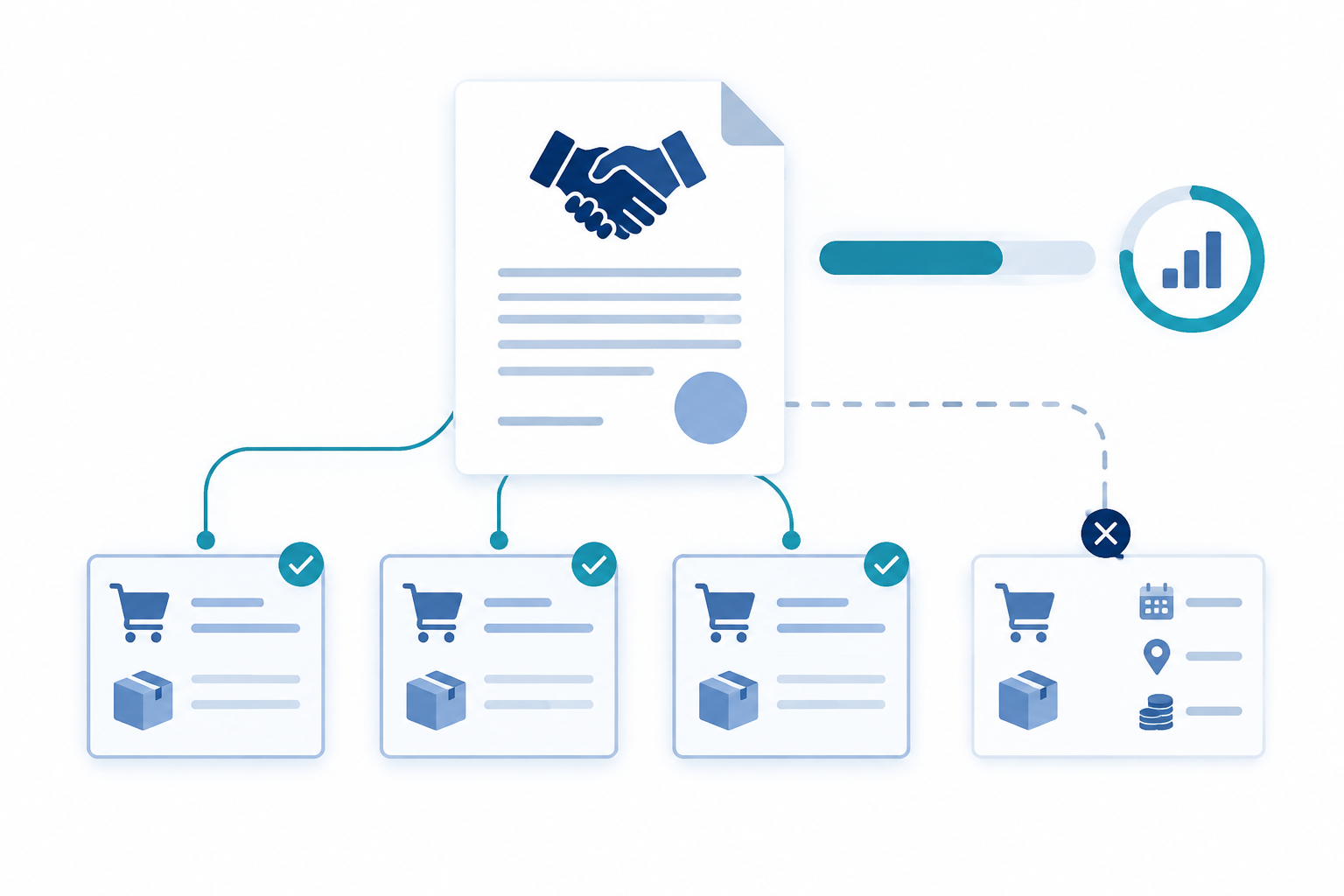
A buyer places an order with the agreed supplier, but the purchase agreement still shows an unexpected remaining commitment. In Dynamics 365 Supply Chain Management, start by checking the relationship between the purchase order line and the agreement commitment, rather than assuming the totals are wrong. This guide focuses on manually created purchase orders using a product quantity commitment, with checks that help explain why an order is not contributing.
Check effective status and the receipt date
Open the purchase agreement and verify that it is effective. Microsoft distinguishes this status from confirmation: an effective agreement can be used without confirmation, while confirmation records version history. A missing confirmation is therefore not, by itself, the explanation for an order that does not count.
Next, compare the purchase receipt date with the agreement validity period. The receipt date must fall within that period. Checking only when the buyer created the order can miss the issue.
For a newly configured agreement, Microsoft's creation procedure includes the option Mark agreement as effective during confirmation. When troubleshooting an existing agreement, inspect its actual status rather than relying on whether someone remembers completing that step.
Microsoft sources: Purchase agreements – Supply Chain Management | Dynamics 365 | Microsoft Learn; Create a purchase agreement – Supply Chain Management | Dynamics 365 | Microsoft Learn.
Establish whether the agreement was selected during order creation
For the manual purchase order workflow, agreement selection belongs to order creation. Microsoft states that you cannot select a purchase agreement after the purchase order has been created. Buying the same item from the same supplier does not replace that selection.
Ask the buyer how the order was created, then inspect the order rather than relying on the supplier account or negotiated price as evidence. Those details alone do not establish that the line fulfills the intended commitment.
If the agreement was omitted, do not assume that changing the price on the existing order will attach it. Review the appropriate correction with your purchasing process owner before changing or replacing an order, especially if processing has already started.
Microsoft sources: Purchase agreements – Supply Chain Management | Dynamics 365 | Microsoft Learn; Apply a purchase agreement when creating a purchase order – Supply Chain Management | Dynamics 365 | Microsoft Learn.
Inspect the line attachment and matching dimensions
On the purchase order, select the relevant line and use Update line, then Attached, to inspect the commitment details. This is a more useful diagnostic step than comparing the order's total with the agreement's total.
Check the item and any dimensions specified on the commitment. Microsoft's procedure explains that commitment-specific inventory or location dimensions must match the purchase order line. The item number alone may therefore be insufficient to establish a match.
For example, if the commitment specifies a site, compare that site with the order line rather than stopping at the product. Treat each affected line separately: one line's attachment is not evidence that every line on the order contributes to the agreement.
Microsoft sources: Apply a purchase agreement when creating a purchase order – Supply Chain Management | Dynamics 365 | Microsoft Learn.
Check whether price or discount changes removed the link
An order line that was originally linked can stop fulfilling its commitment after an edit. Where Price and discount is fixed applies, changing the price or discount can remove the relationship between the order line and the purchase agreement commitment.
This makes later price adjustments an important troubleshooting question. Ask whether the buyer changed commercial terms after creating the line, then inspect Attached again to establish its current relationship.
Do not treat a familiar-looking price as proof that the relationship is still present. When correcting the issue, verify both the intended commercial terms and the attachment instead of checking only the numeric price.
Microsoft sources: Purchase agreements – Supply Chain Management | Dynamics 365 | Microsoft Learn; Apply a purchase agreement when creating a purchase order – Supply Chain Management | Dynamics 365 | Microsoft Learn.
Trace fulfillment from the agreement back to transactions
Return to the purchase agreement and review the Fulfillment tab. Use its fulfillment and remaining commitment information to identify which commitment needs investigation. Related information provides access to the contributing transactions.
Compare those transactions with the purchase order line you inspected. This connects the two sides of the investigation: whether the line has an attachment, and whether the agreement shows the transactions you expect.
For an efficient support handover, record the agreement, commitment, purchase order and line, receipt date, relevant dimensions and any price edits. That gives the next person a focused starting point instead of a general report that the agreement balance looks wrong.
Microsoft sources: Purchase agreements – Supply Chain Management | Dynamics 365 | Microsoft Learn; Apply a purchase agreement when creating a purchase order – Supply Chain Management | Dynamics 365 | Microsoft Learn.
Keep requisitions and maximum enforcement separate
A purchase requisition is not a reservation against a purchase agreement. Microsoft explains that requisitions do not reserve agreement quantities or amounts because approval is not guaranteed. The agreement maximum therefore does not act as a requisition-stage cap.
Similarly, Max is enforced concerns purchases fulfilling the linked commitment. It is not a universal ceiling on all spending with that supplier.
The practical troubleshooting sequence is straightforward: check effective status and receipt dates, establish agreement selection at order creation, inspect the line attachment and dimensions, then investigate price edits and contributing transactions. Keep requisition expectations separate from those purchase order checks.
Microsoft sources: Purchase agreements – Supply Chain Management | Dynamics 365 | Microsoft Learn; The purchase agreement maximum limit isn't effective on a purchase requisition – Dynamics 365 Supply Chain Management | Microsoft Learn; Apply a purchase agreement when creating a purchase order – Supply Chain Management | Dynamics 365 | Microsoft Learn.
Explore more D365 learning
📚 Explore more updates on the D365 Insider Blog.
Prepared with AI assistance using official Microsoft documentation. Feature availability and details may change; consult the linked Microsoft sources for the latest information.

Leave a Reply